Logging from ASP.NET Core with Elmah.io

Log and log often ~ Nobody said that.
There’s a quote that says “You can’t improve what you can’t measure”. Logging events in web apps is one of those things developers tend to underestimate.
In this tutorial, I will explain shortly how to implement Elmah in ASP.NET Core for logging errors, important info, warnings, or any other kind of level… and send it to the Elmah.io cloud service. You are maybe wondering, why Elmah.io? there are others Third-party logging providers, but I chose this for 4 main reasons:
- Vast documentation.
- Public and private support of the product itself.
- Cool user interface.
Cost (a freemium pricing model)free plan discontinued :(
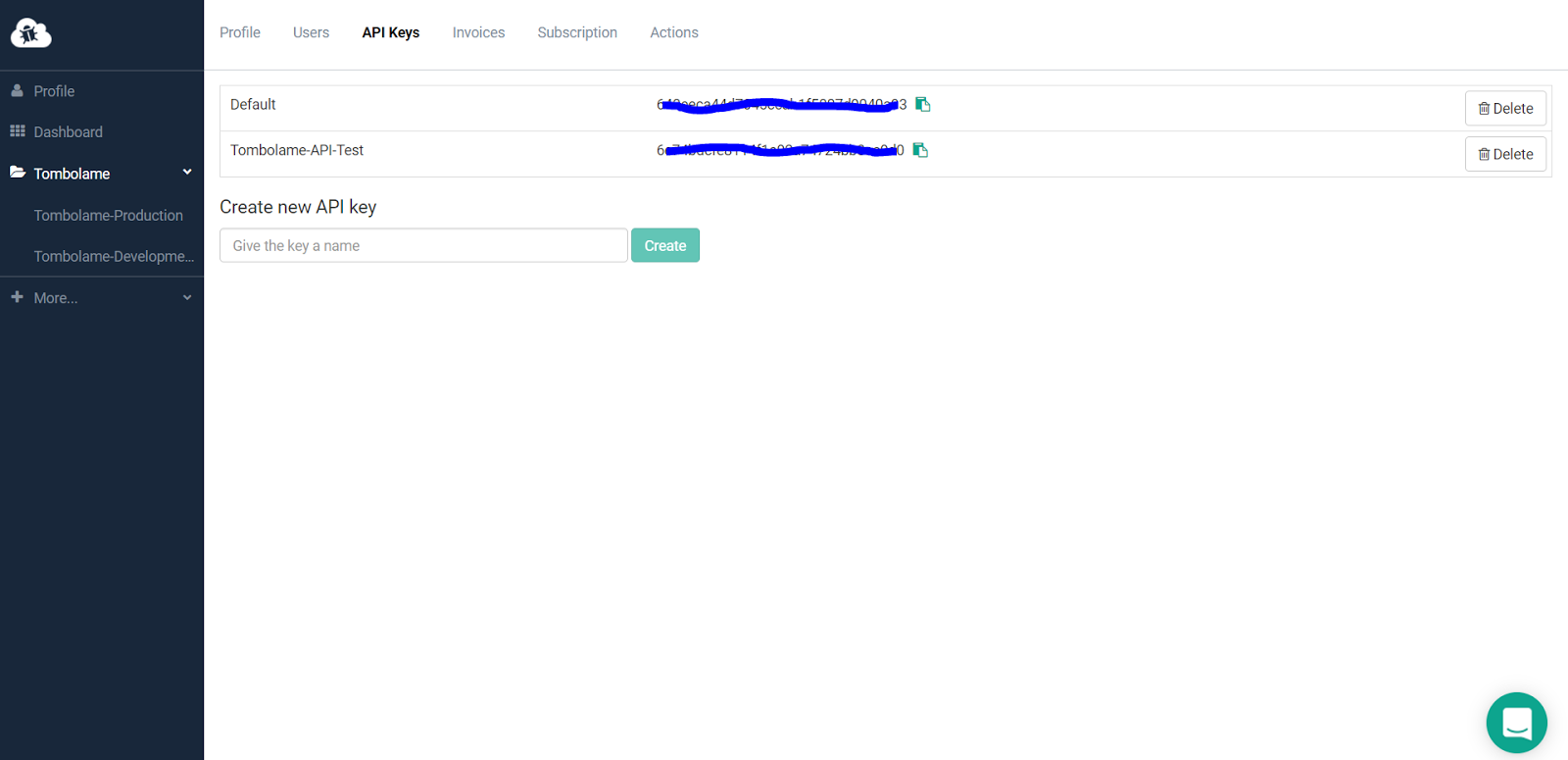
First step: get everything ready with an Elmah.io account, go directly to their website and sing up. Once you are registered, sing in —> Dashboard —> click on the gear symbol of the organization —> API Keys. Now create your API or use the default one:
Second Step: To save your logs in Elmah.io besides your API Key you will also need to create a log. Under the Dashboard, go to Create Log, and keep the Log ID:
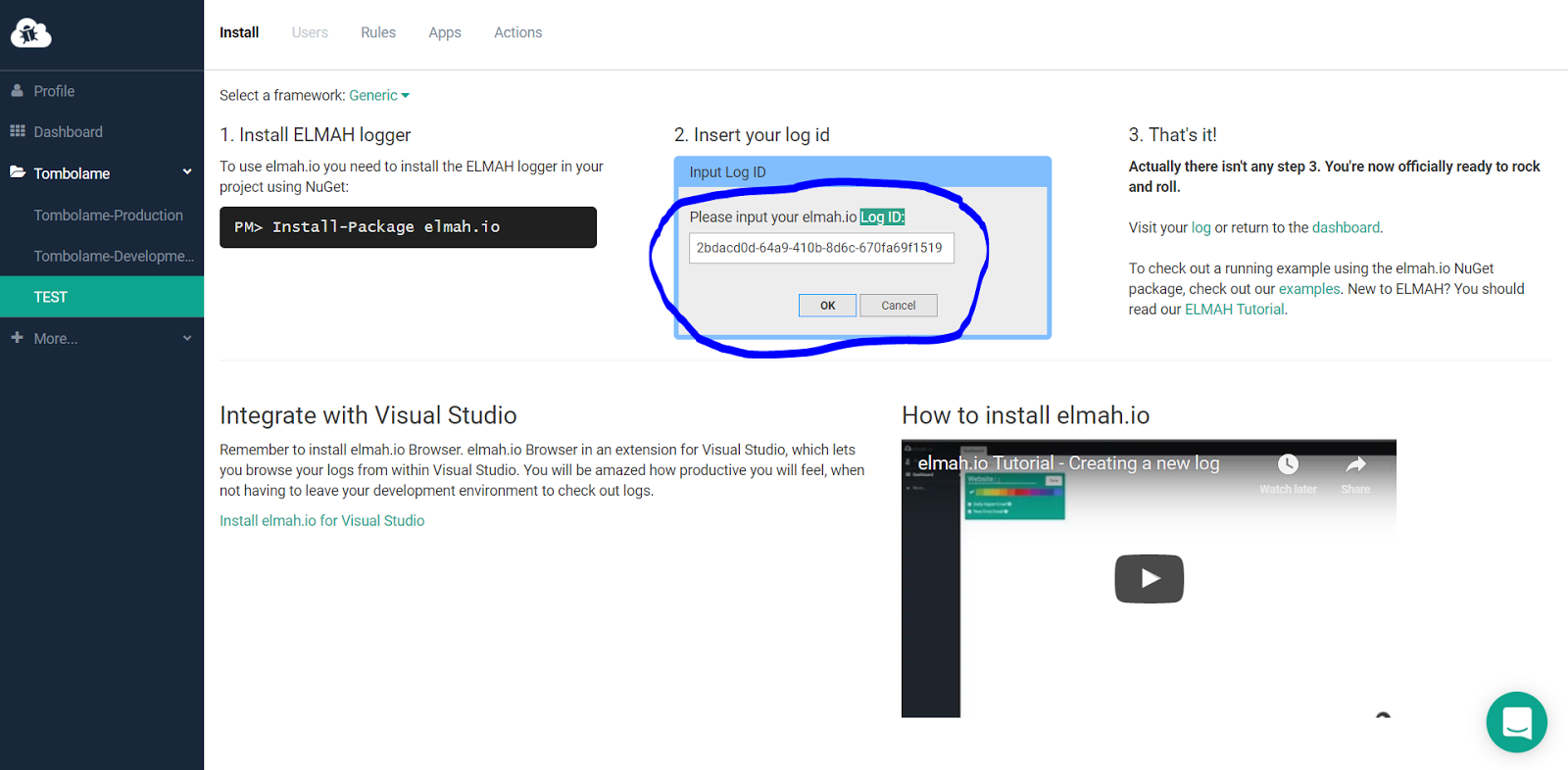
Tips: In my case for every project, I create 2 logs, one for Production and another one for Development, this is up to you.
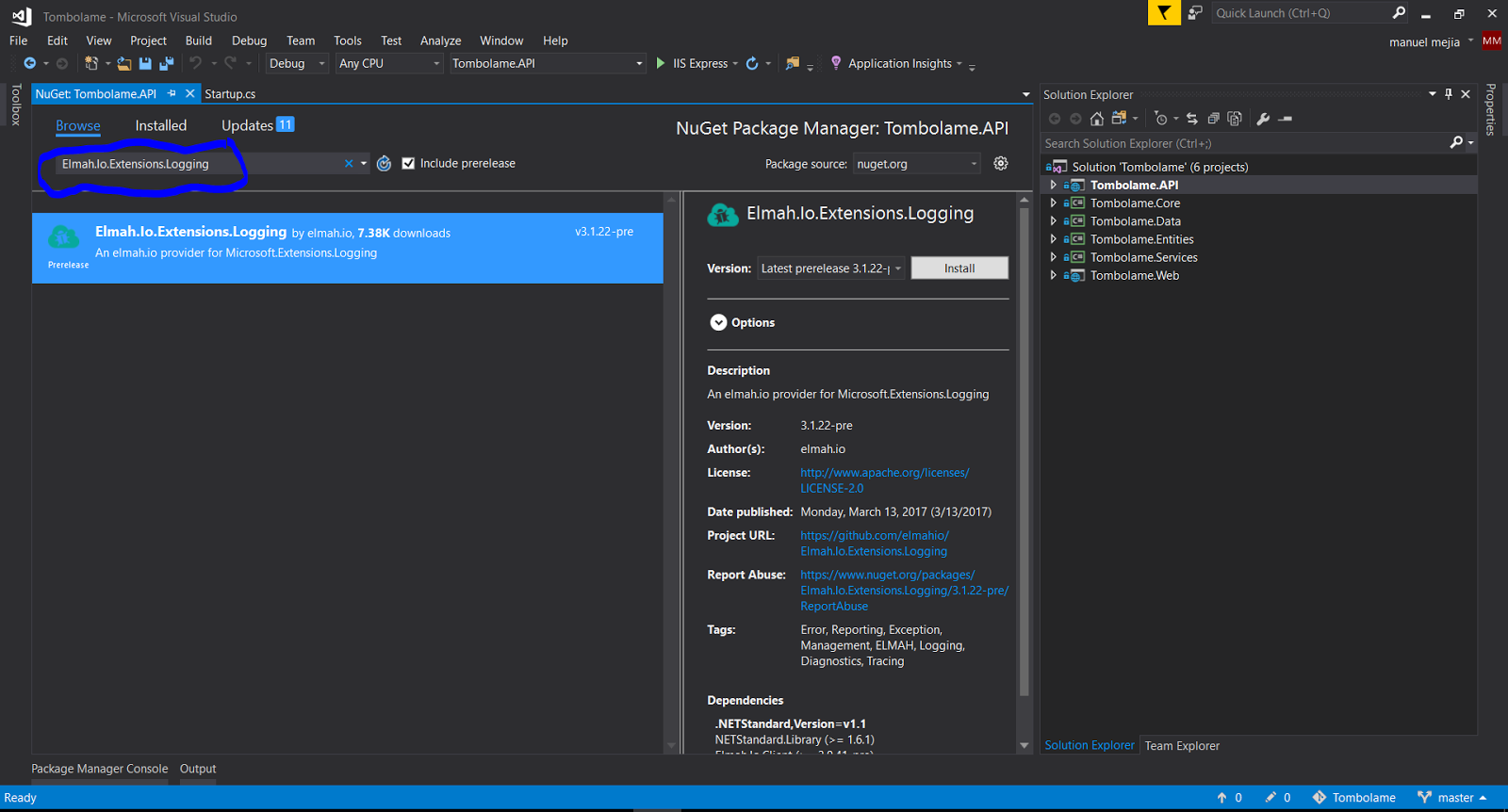
Third step: Open your ASP.NET Core project. We are going to use Elmah.Io.Extensions.Logging. To install it on your project, open the Package Manager Console and type:
Install-Package Elmah.Io.Extensions.Logging -Version 3.1.22-pre -Pre
or you can do it through the NuGet.
Fourth step: Now we need to go to the Startup.cs and inside public void Configure after loggerFactory.AddDebug() type:
loggerFactory.AddElmahIo("your API key", new Guid("your Log ID"));
In my implementation, I got 2 scenarios one for Production and another one for Development as I said it before:
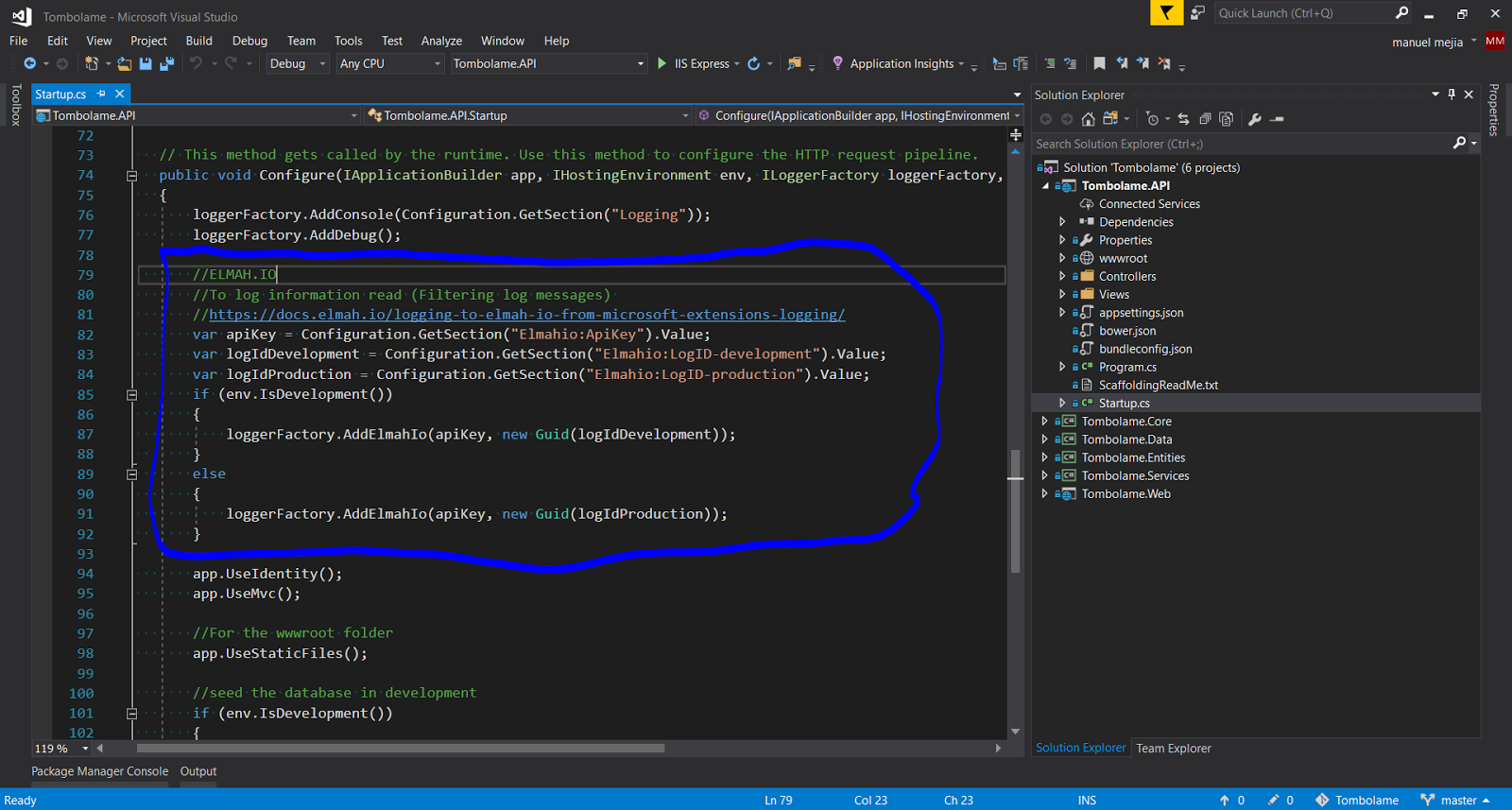
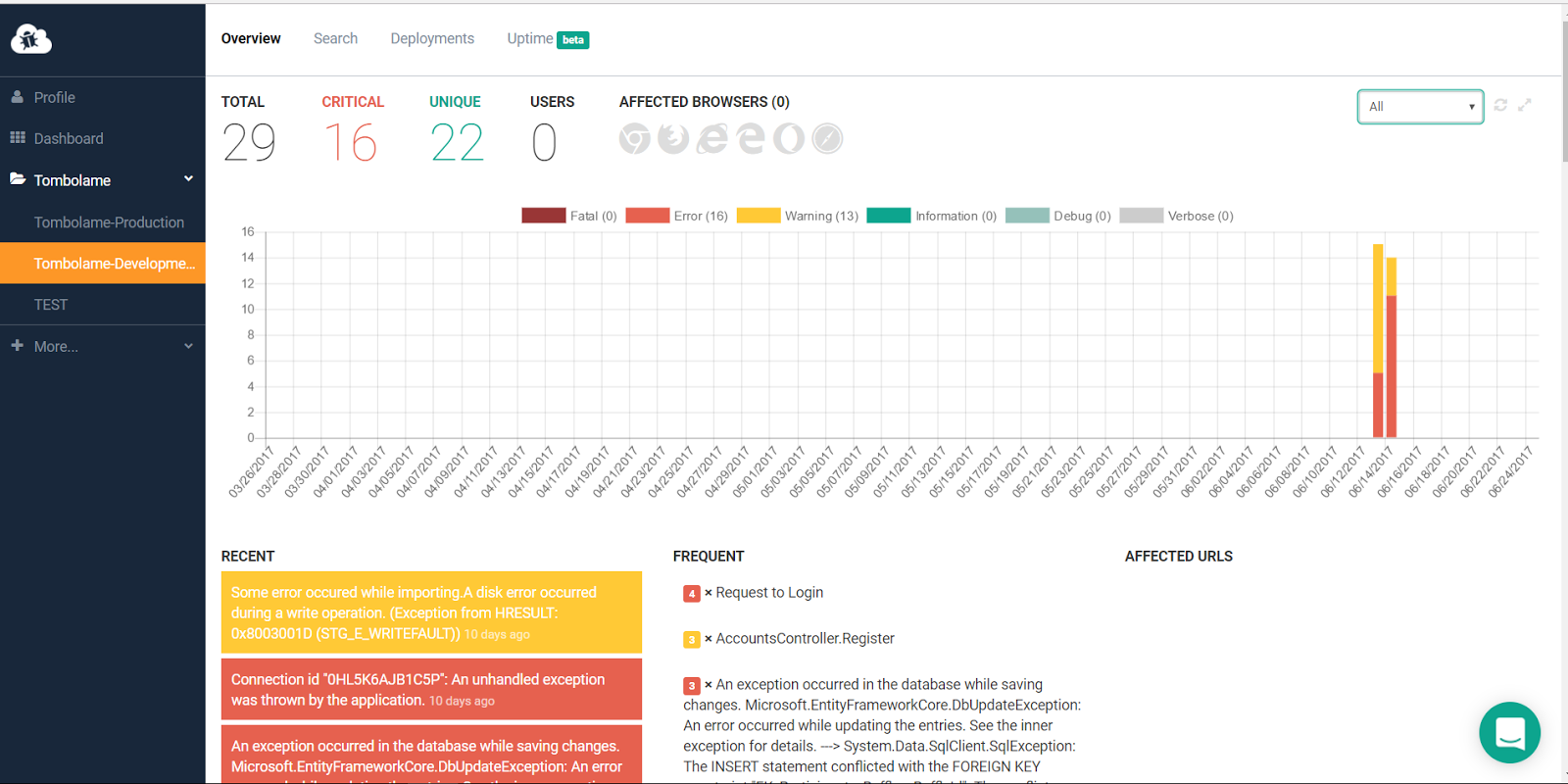
And that’s it, this will log every exception, identity error or any other failure in Elmah.io automatically.
BONUS
1# Manual logging
This is an example of how to log manually:

2# Logging information level
By default Elmah.Io.Extensions.Logging doesn’t use LogInformation to obviously log information, to enable it in your Startup.cs —> public void Configure method use:
loggerfactory.AddElmahIo("API_KEY", new Guid("LOG_ID"), new FilterLoggerSettings { {"elmah.io", LogLevel.Information} });
If you have any question leave a comment in the section below, I’ll get to it as soon as possible.
Link: https://elmah.io/.